I am a frontend web developer. I use cutting-edge technology to solve problems. I love peer learning and challenges.
JavaScript built-ins are functions and objects that are available in the JavaScript environment without the need for importing or installing them. They are built in the language and can be used directly in your code. Example: Math, Date, Array, object, Sets, Maps, and Promises. They provide additional functionality to JavaScript and make it easier to perform some tasks.
SYMBOLS
Looking at the plate containing some fruits, what if I asked you to hand over one banana from the banana plate? The right question should be, which of the bananas? This is where symbols come in.
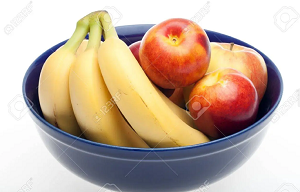
Symbols are unique and immutable data types in JavaScript that are often used to identify object properties. They were introduced in ES6 as a new primitive data type along with numbers, strings, booleans, null, and undefined. To create a symbol, you write Symbol () with an optional string as its description.
const fruits = Symbol(“banana”);
console.log(fruits);
This will create a unique symbol and store it in fruits. The description “banana” is just a way to describe the Symbol, but it can’t be used to access the Symbol itself. Just like below:
const gender = Symbol("male");
const sex = Symbol("male");
console.log(gender === sex);
…then the result is false because the description is only used to describe the symbol. It’s not used as part of the symbol itself—each time a new symbol is created, regardless of the description.
To appropriately present the above fruits in the bowl,
const bowl = {
[Symbol(“apple”)]: {color: “red”, weight: 136.078},
[Symbol(“apple”)]: {color: “red”, weight: 116.078},
[Symbol(“apple”)]: {color: “red”, weight: 114.078},
[Symbol(“banana”)]: {color: “yellow”, weight: 100.008},
[Symbol(“banana”)]: {color: “yellow”, weight: 122.078},
[Symbol(“banana”)]: {color: “yellow”, weight: 134.028},
}
console.log(bowl);
Object {Symbol(apple): Object {Symbol(apple): Object {Symbol(apple): Object, Symbol(banana): Object, Symbol(banana): Object, Symbol(banana): Object, Symbol(banana): Object}
By changing the bowl’s properties to use symbols, each property is a unique Symbol and the first banana doesn’t get overwritten by the second banana likewise the first apple doesn’t get overwritten by the second apple.
SETS
A set is a unique container that can store a variety of items but only maintains one of each sort. For example, if a box is filled with a ball, pen, and pencil, the set will check to see if there is more than one of the same items. This prevents duplication and keeps things in order.
Basically, a Set is an object that lets you store unique items. You can add items to a Set, remove items from a Set, and loop over a Set. These items can be either primitive values or objects.
const games = new Set(['Super Mario Bros.', 'Banjo-Kazooie', 'Mario Kart', 'Super Mario Bros.']);
console.log(games);

Set(3) {'Super Mario Bros.', 'Banjo-Kazooie', 'Mario Kart'};
Notice the example above automatically removes the duplicate entry "Super Mario Bros." when the Set is created. Pretty neat!
Sets can be modified by add(), delete(), clear(), has(), size(), values()
const games = new Set();
games.add('Banjo-Tooie');
games.add('Age of Empires');
games.delete('Super Mario Bros.');
console.log(games.size);
2
Finally, use the values() method to return the values in a Set. The return value of the values() method is a SetIterator object. However, with the use of Sets, there are two ways of looping through an array;
Using the Set’s default iterator
Using for…of loop
Using the Setiterator: The values() method creates a new iterator called SetIterator. The results of the setiterator should be stored in a variable then use next() method to loop through each item
Using the array above,
const iterator = games.values();
iterator.next()
Object {value: 'Super Mario Bros', done: false}
Object {value: 'Banjo-kazooie', done: false}
and so on until it returns done: true
Using the for… of loop: This is quite easier to loop through a set.
const months = new Set(['January', 'February', 'March', 'April', 'May', 'June', 'July', 'August', 'September', 'October', 'November', 'December']);

for(const item of months) {
console.log(item)
}
This returns the individual items of the variable months.
Thank you for reading. Do comment in the box below for more clarity or contribution.